
If you have ever wondered how films, music videos and wedding videos get that rich, finished look, the answer is usually colour grading – and the quickest way to grade is with a LUT. This guide explains what a LUT is, how it works, and how to get great results from one, even if you have never graded a clip before.
What is a LUT?
LUT stands for “Look-Up Table”. It is a small file (usually a .cube file) that tells your editing software how to change every colour in your footage. For each input colour, the LUT says exactly which output colour to swap it for. Apply it to a clip and the whole shot changes in one click – warmer skin, teal shadows, deeper blacks, a film-like fade, or whatever look the LUT was built for.
Because a LUT is just a table of numbers, it works the same way in almost every editor: DaVinci Resolve, Adobe Premiere Pro, Final Cut Pro, CapCut, Avid, Photoshop and more.
The two kinds of LUT
- Technical (conversion) LUTs turn flat log footage into normal-looking Rec709 video. Camera makers like Sony, Panasonic and Canon give these away for their log profiles.
- Creative (look) LUTs add a style – cinematic, moody, bright and airy, vintage film and so on.
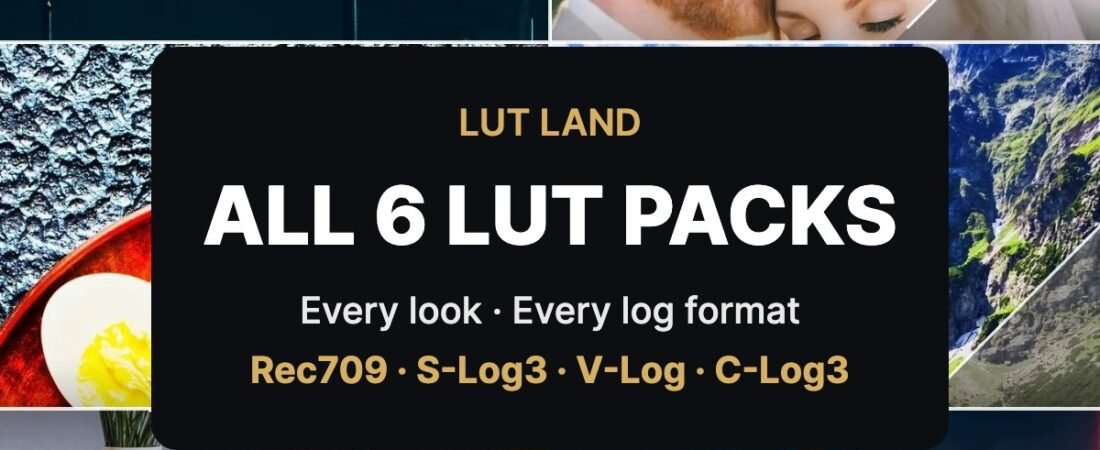
The LUTs in every LUT Land pack come in both forms: a Rec709 version for normal footage, and log versions (S-Log3, V-Log and C-Log3) that convert your log footage and add the look in one step. New to the term? See What is Rec709? Not sure which you need? Read our guide to log vs Rec709 LUTs.
Why use LUTs?
- Speed. A finished look in seconds instead of building a grade from scratch.
- Consistency. The same LUT across a whole wedding, shoot or series keeps every clip matching.
- A starting point. Professional colourists often start with a LUT and then fine-tune.
- Works on any camera. Phone, drone, mirrorless or cinema camera.
How to get the best results from a LUT
- Get exposure and white balance right first. A LUT changes colours based on what goes in. If the clip is too dark or too blue, the result will be too. Fix exposure and white balance before (or underneath) the LUT.
- Use the right version. Use the Rec709 LUT on standard footage and the matching log LUT on log footage. Using a log LUT on normal footage gives crunchy, over-saturated results.
- Adjust the strength. Most editors let you lower the LUT’s intensity or opacity. Many looks are at their best between 60% and 100%.
- Fine-tune after. Small tweaks to contrast, saturation or skin tone after the LUT make the look your own.
- Check skin tones. If skin looks wrong, the LUT is either too strong or the white balance underneath needs adjusting.
How do I apply a LUT?
We have step-by-step guides for the most popular editors:
Frequently asked questions
Are LUTs the same as presets?
Similar idea, different tools. LUTs are mainly for video (and work in Photoshop too). Presets are for photo editors like Lightroom. LUT Land makes both – see our Lightroom presets and how to install them.
Do LUTs work on phone footage?
Yes. Use the Rec709 version on normal phone video. If your phone shoots in a log profile, convert it to Rec709 first, then add the look.
Will a LUT reduce quality?
No. A good LUT is applied with full-precision maths in your editor. Just avoid pushing a strong look onto badly exposed footage.
Try it yourself
Every LUT Land pack includes 10 looks in Rec709, S-Log3, V-Log and C-Log3, ready for Resolve, Premiere Pro, Final Cut Pro and CapCut. Start with the Cinematic LUT Pack, the Moody & Cinematic LUT Pack, or get every look with the All 6 LUT Packs bundle.